Welcome
Drop-in visitor analytics for VRChat worlds.
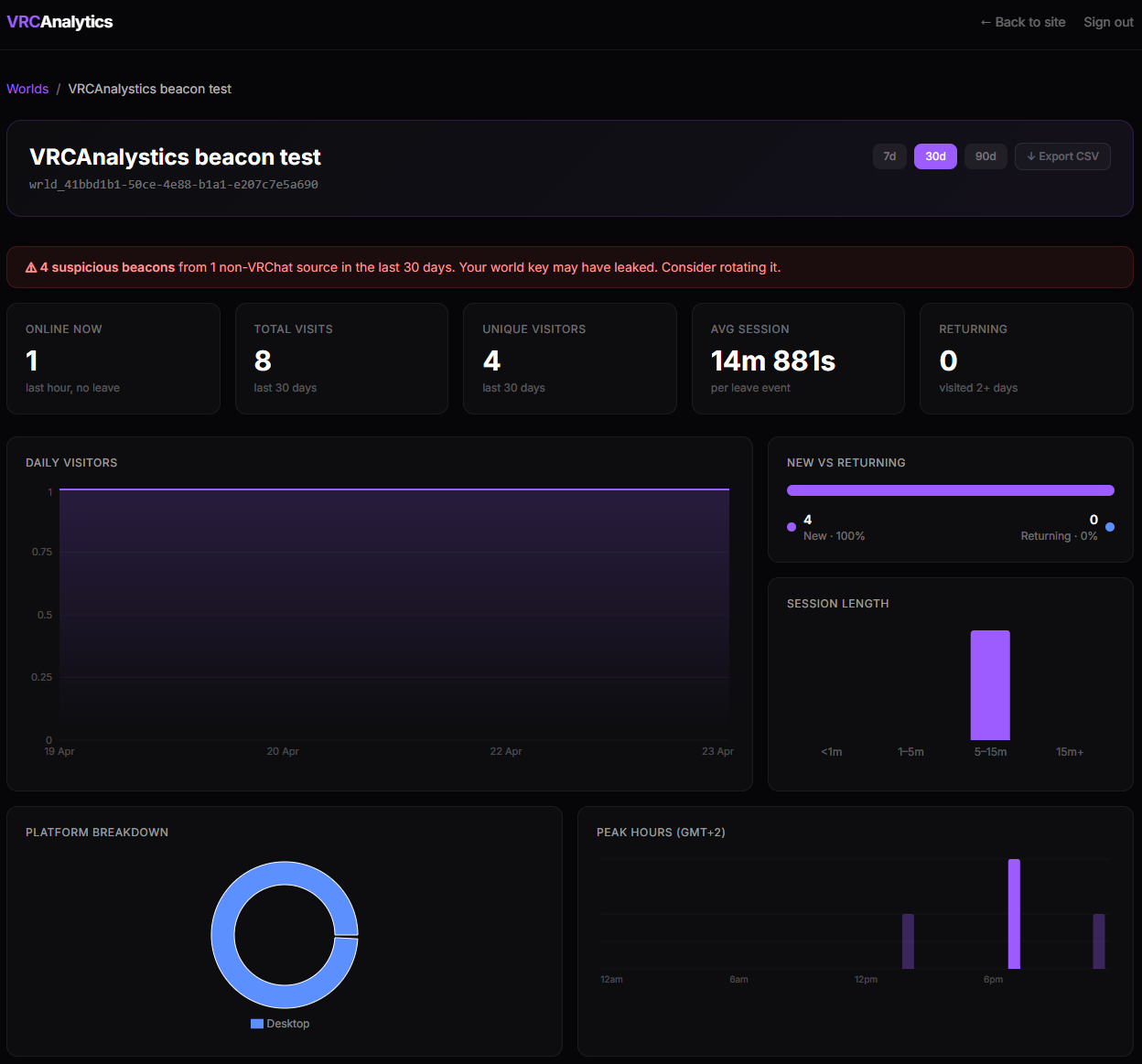
VRCAnalytics tracks joins, leaves, session duration, zone visits, FPS health, and instance sizes for worlds you publish on VRChat. Install once, paste a setup key into Unity, and your dashboard starts populating the first time a player joins your uploaded world.
Philosophy
Your setup key is a developer credential, not a password. It lives in your Unity editor only — never embedded into the world you upload, never seen by players.
5-minute quickstart
- Create an account at vrcanalytics.com/register
- Click
Register a world— you can leave the VRChat World ID blank; the build hook binds it automatically when you Build & Publish - Copy the setup key that appears (shown only once)
- Install the VRCAnalytics package via VCC into your Unity world project
- In Unity:
VRCAnalytics → Enter Setup Keyand paste - Click
Build & Publishin the VRChat SDK panel as normal - Join your world — beacons start flowing immediately; hit
Refreshon your world's dashboard to watch them land
What it tracks
- Join / leave events per session (derives session length server-side)
- Platform breakdown: PC VR, desktop, Quest
- Zone entries / exits for named regions of your world (optional)
- Currently-online count per world and per zone
- Daily visits, peak hours, day-of-week heatmaps
- FPS distribution per platform (bucketed, sampled every minute in-world)
- Instance size at join (bucketed player counts)
- Suspicious-source detection (non-VRChat user-agents hitting your beacon)
What it doesn't track
- Player display names or VRChat user IDs
- GPU, CPU, RAM, OS, or any other hardware fingerprint
- IP addresses (hashed at arrival to pair sessions, never stored)
- Player positions beyond zone membership
- Anything about the player's avatar or inventory
Beyond the dashboard
Registered worlds also get a beacon-powered public page, a transparent Pulse score, and a shot at the weekly leaderboards — see Pulse & public pages.